DuckCarry brings photos from your phone to folders on your computer, checks every copy, and helps you tidy up on the phone. Removing anything stays your decision.
Connect a phone, copy and check, then browse your library by day, album or place.
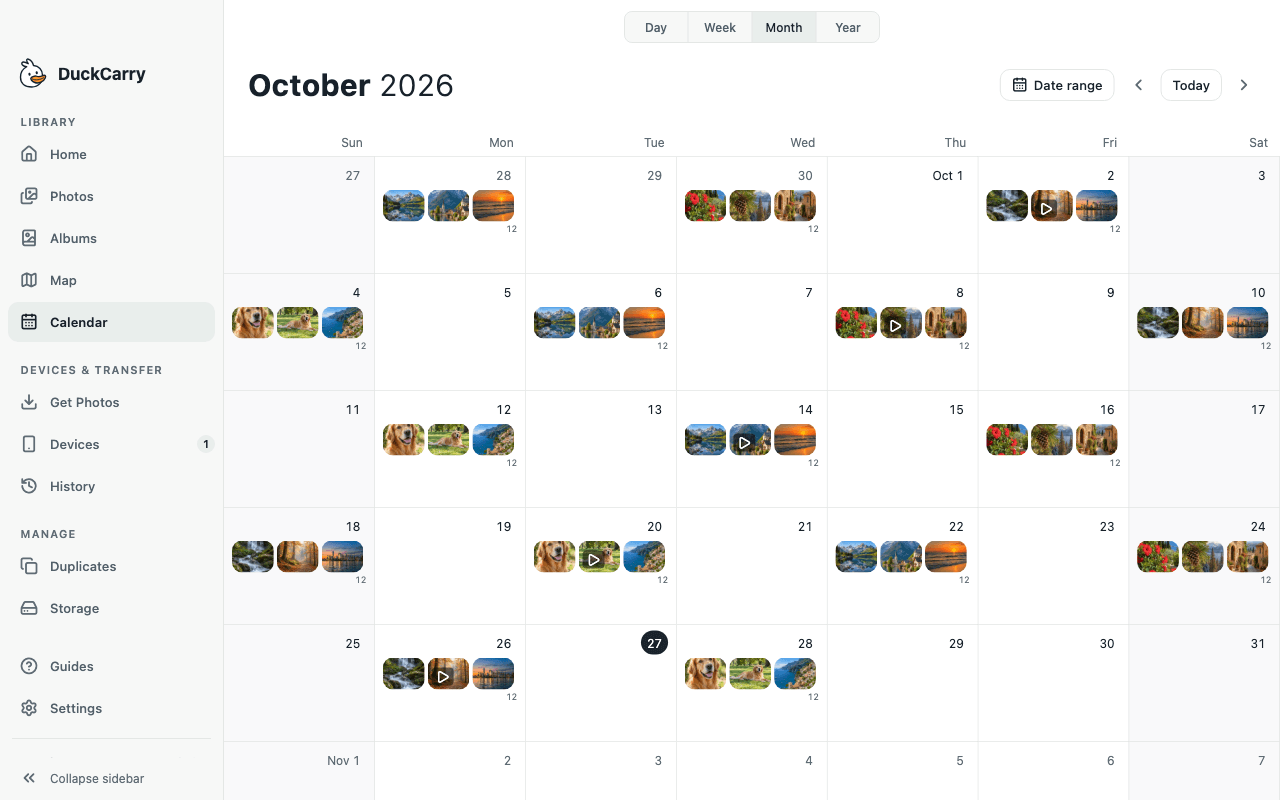
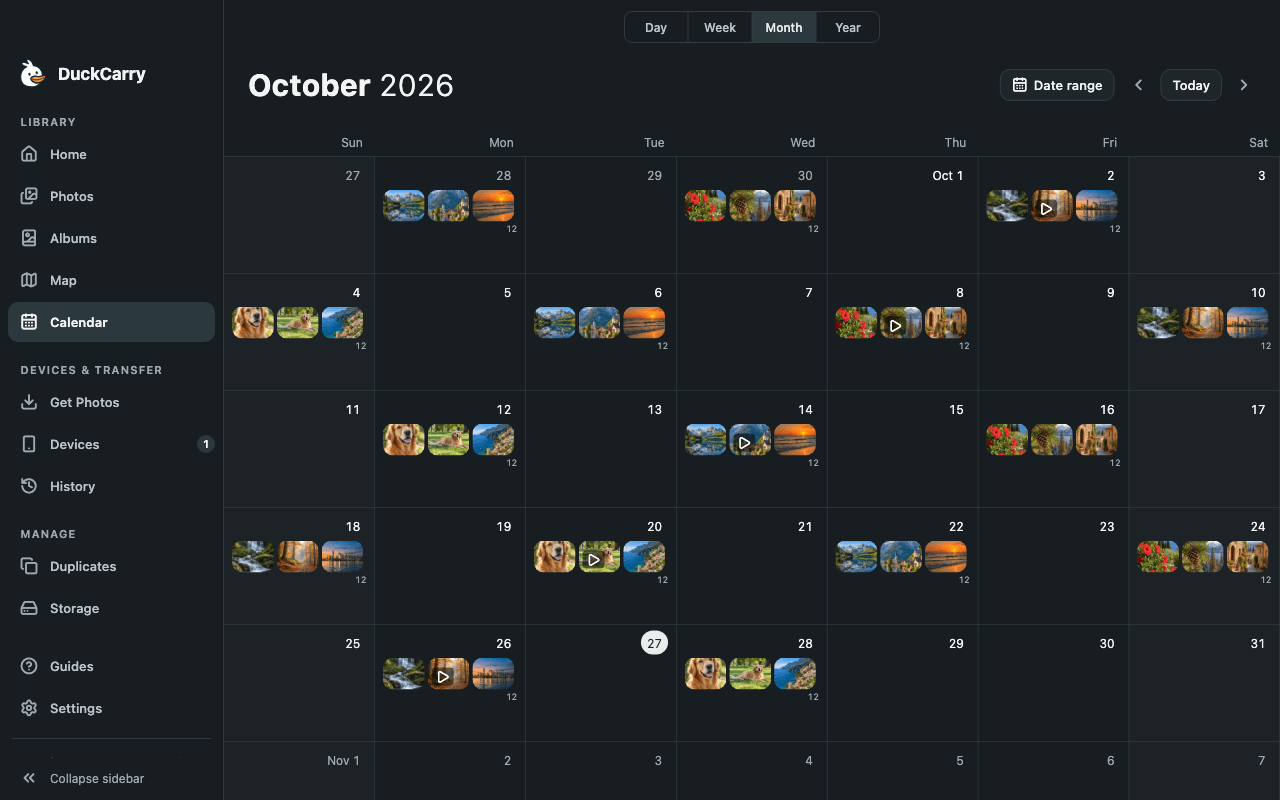
DuckCarry for macOS with an example library and test devices. No personal photos are shown.
On your phone
Sort on the phone. Send to your computer.
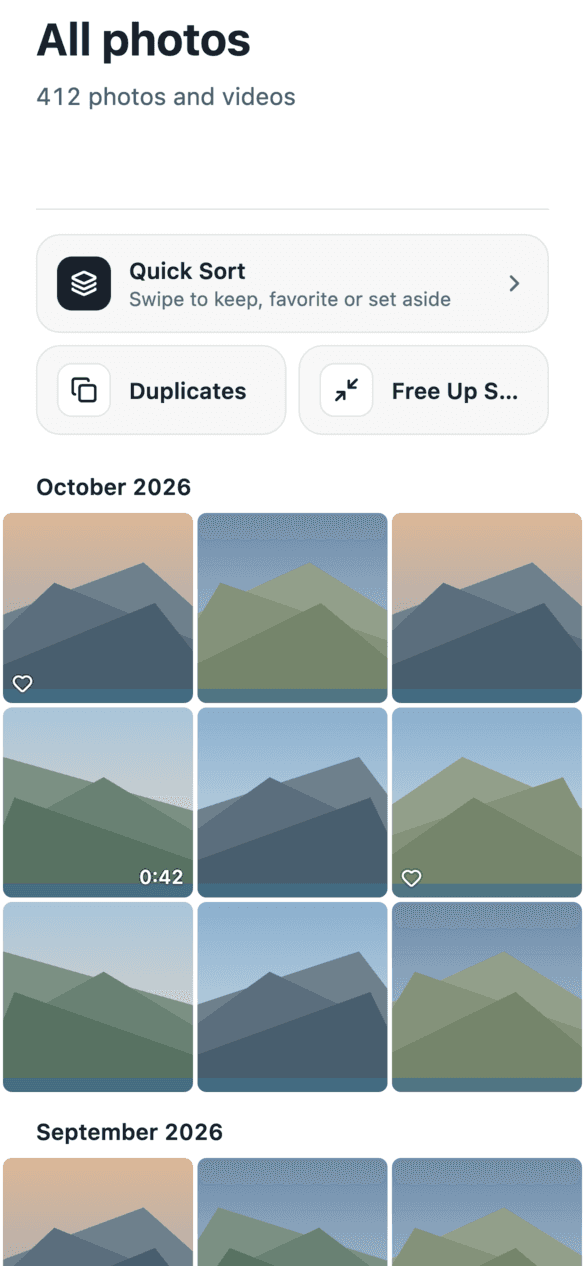
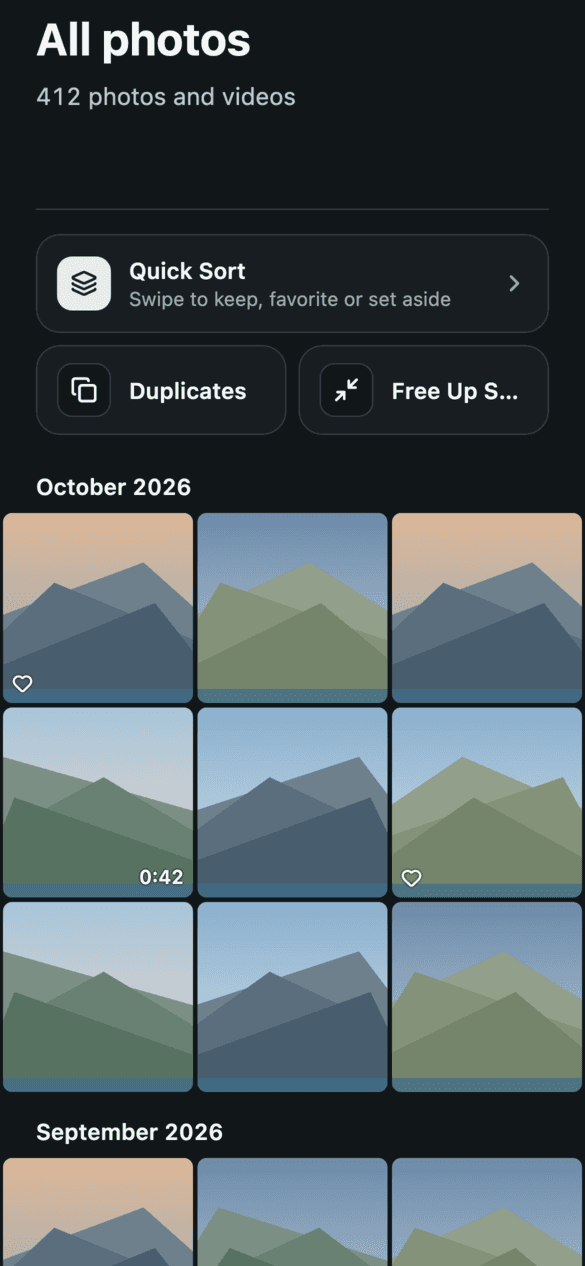
The DuckCarry phone app shows your library by month, helps you decide what stays, and sends copies to a computer you have paired.
App previews rendered from the phone app with example images. They are not captures from a physical device.
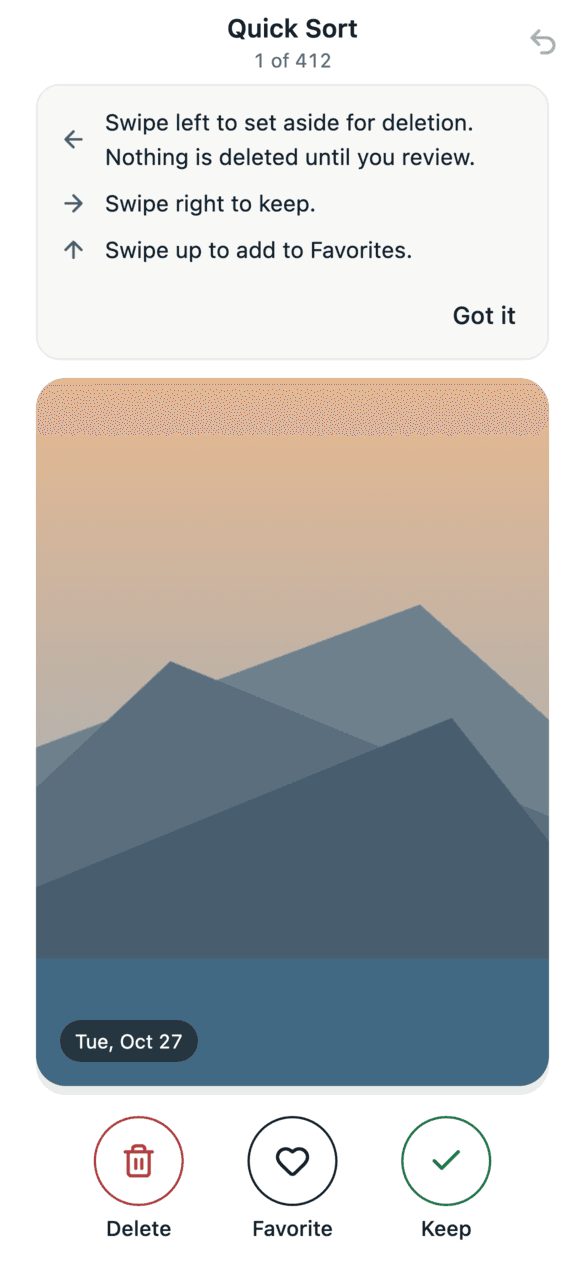
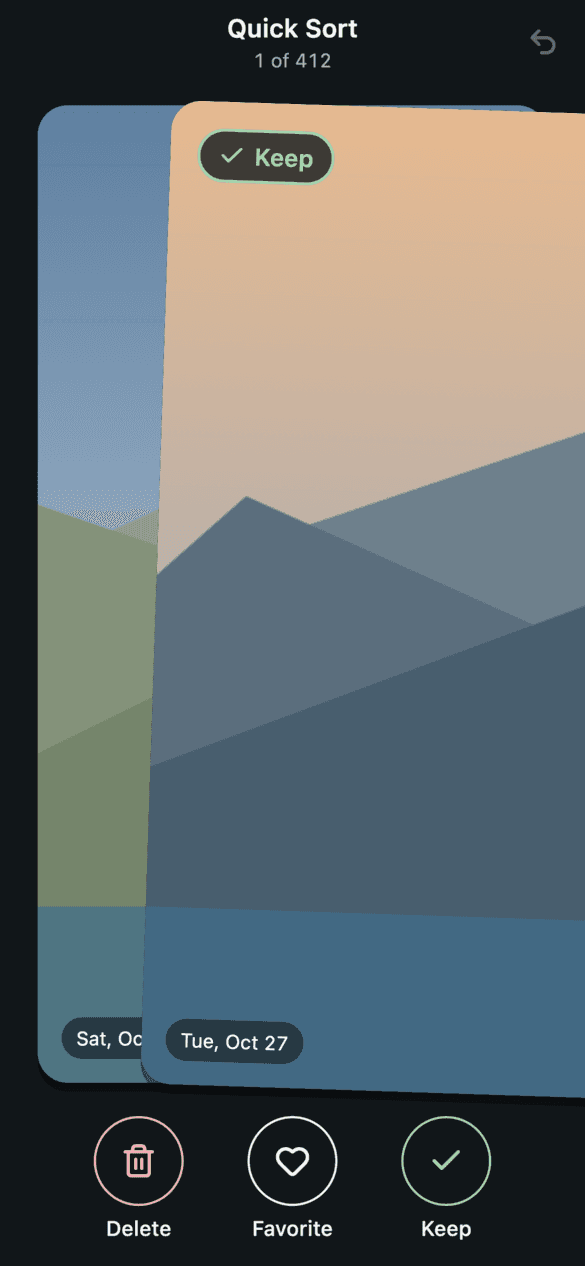
Quick Sort, one photo at a time.
Swipe through your library and decide as you go.
Left sets a photo aside for deletion.
Right keeps it, unchanged.
Up adds it to your system Favorites.
Nothing is deleted on a swipe. You review the list first, then confirm the deletion.
System Favorites and the system trash need Android 11 or later. On older Android versions, Favorites are unavailable and a confirmed deletion is permanent.
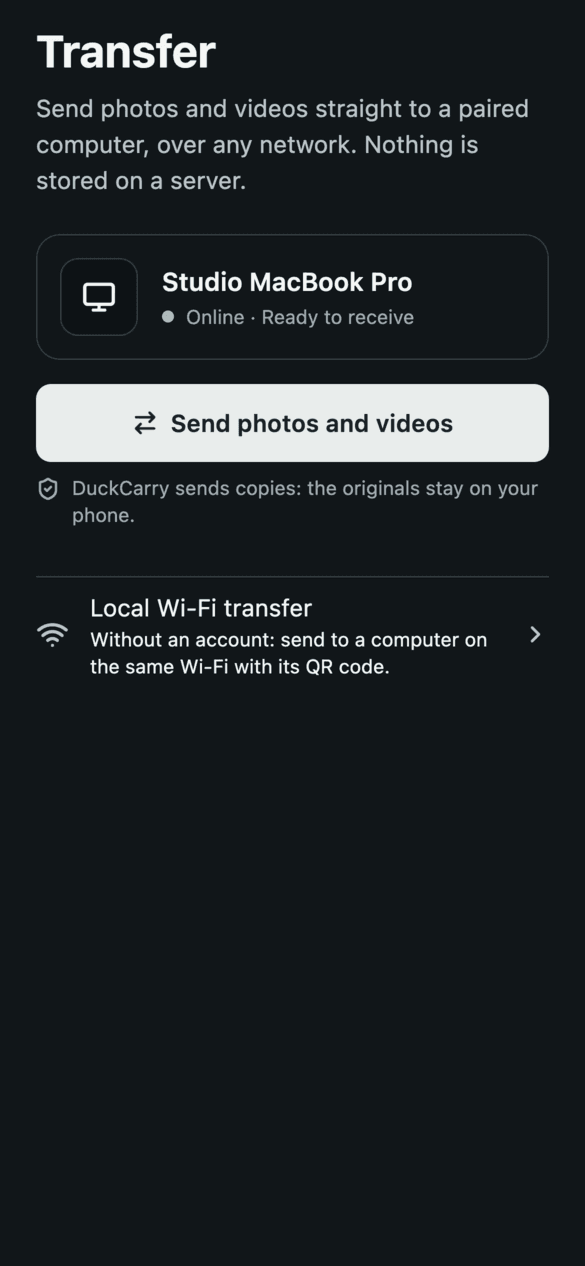
Send straight to your computer.
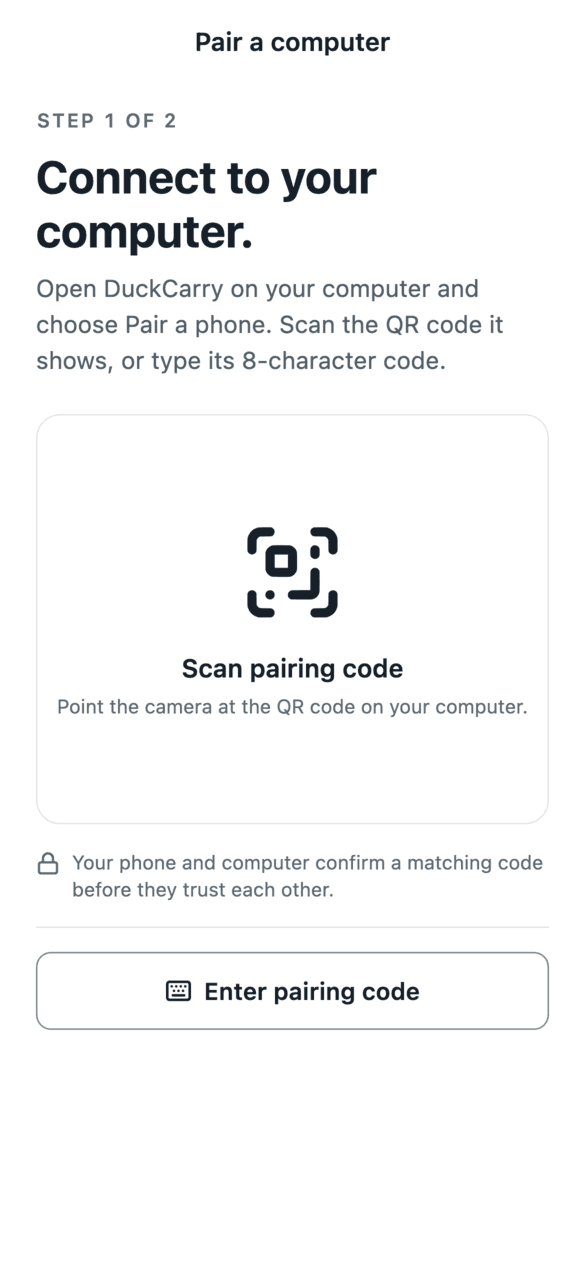
Pair the phone with DuckCarry on your computer once, then send photos and videos to it. The originals stay on your phone.
Phone app availability
iPhone · App StorePreparing for release
Android · Google PlayPreparing for release
How it works
Two ways home. Both checked.
Use a cable at your computer, or send from the phone app to a computer you have paired.
No account needed
By cable, on the computer
Connect your phone
Plug it in, unlock it and allow access when it asks.
Choose a home
Pick a folder on this computer and, if you like, a backup drive for a second copy.
Copy, then check
Each file is written, read back and checked. Items already copied are skipped.
Account and pairing
From the phone app
Sign in on the phone
A DuckCarry account lets your phone find the computers you pair with it.
Pair once
Scan the code shown on the computer, then check that both screens show the same six-digit code.
Send directly
Photos and videos travel over a direct, encrypted connection from your phone to your computer.
Our servers handle accounts, pairing and connection setup, never your files. Some networks do not allow a direct connection; the app then tells you instead of switching to a relay. On the same Wi-Fi, local transfer works without an account.
What “checked” means
In a cable copy, a file counts as copied only after it has been written under a temporary name, read back from disk and matched. An incomplete file never counts as a checked copy.
Deliberate deletion
Copy first. Decide later.
Bringing photos home never removes them from your phone on its own.
Private by design
The desktop app copies and checks on your computer, without a photo cloud. The phone app uses a DuckCarry account to pair and connect; your photos and videos go directly to your computer.
Originals are verified after writing. A second copy on a backup drive gets its own check.
Removal asks twice
On the computer, only checked originals can be offered for removal, with two confirmations. Live Photo pairs stay together, and the app never empties Recently Deleted.
Quick Sort waits for you
On the phone, a swipe only adds to a review list, and nothing is deleted until you confirm it. An iPhone keeps deleted items in Recently Deleted and Android 11 or later moves them to its trash; on older Android versions, a confirmed deletion is permanent.
Features
Everything around the copy, taken care of.
Library
Browse by year, month and day, with albums, favorites, a calendar and a photo viewer.
Duplicates
Review identical and similar photos side by side. Selected computer copies are moved aside and can be restored; your phone and backup are left alone.
Places
See photos that carry a location on a map. Map tiles load from CARTO and OpenStreetMap when you open it.
Transfer
Optional JPG copies of iPhone photos and H.264 MP4 copies of videos through your computer’s codecs. Live Photos stay a pair, and original videos are always kept.
Checking, recovery and a second copy belong in the free desktop version, too.
These terms are for the desktop app.
Free to start
100First 100 photos and videos
Then 25 each time you open the app. A Live Photo pair counts as one item. Your existing copies always remain yours.
One-time license
The full version is planned for copying the rest in one go. A one-time purchase, licensed per computer: 1, 3 or 5 computers, Mac or Windows. No subscription. Pricing and checkout will be announced with the public release.
There is no DuckCarry photo cloud. With a cable, files go from your phone to the folder and optional backup you choose. The phone app sends files directly to your paired computer; our servers handle accounts and connection setup but never receive your photos or videos.
Will it remove anything from my phone?+
Not while copying or sending. On the computer, removal asks twice and only offers items with checked original copies. In the phone app, Quick Sort only deletes what you review and confirm; it does not depend on a computer copy. DuckCarry never empties Recently Deleted.
Do I need an account?+
Not for the desktop app, cable copies or local Wi-Fi transfer. The phone app needs a DuckCarry account to pair with your computers and send to them over the internet.
Does sending from the phone work on every network?+
No. DuckCarry needs a direct connection between your phone and your computer and never relays your files. Some mobile and company networks block that. The app tells you when a direct connection is not possible; on the same Wi-Fi, local transfer is an alternative.
What does my iPhone need on Windows?+
Apple Devices supplies the connection service. Unlock the phone and tap Trust when asked. The help guide explains the driver and cable steps.
What about HEIC, videos and Live Photos?+
DuckCarry can make JPG and H.264 MP4 copies through system codecs. Missing codecs leave the original intact. Live Photos keep their photo and motion video together.
What if I unplug the phone?+
Completed checked files stay on the computer. Reconnect the same phone to continue. An interrupted session can also be resumed from History after checking its destinations.
Can I download it now?+
Not yet. The desktop installers and the phone apps for the App Store and Google Play are being prepared for release. The availability page shows the state of each platform. License sales run through Lemon Squeezy; until the product is published, the buy page says purchasing opens soon.
How many computers can I use it on?+
A license is a one-time purchase for 1, 3 or 5 computers, and one key works on both Mac and Windows. Moving to a new computer? In DuckCarry on the old one, choose Settings > License > Remove license from this computer, then enter the key on the new one. If the old computer is lost or broken, write to support@omnibus.dev and we will free it for you.
Is the Mac App Store edition different?+
Apple requires App Store apps to run in its App Sandbox, so on Mac a few things work differently there. The full edition from this website has every feature. See what differs
 DuckCarry